
A virtual class freezes right as your child is called on. An assignment takes forever to upload. Or your online course works perfectly until someone else in the house starts streaming or joins a video call.
Problems like these do not always mean you simply need “faster Internet.” Reliable Wi-Fi and remote learning depend on several parts of your home network working together, including your Internet connection, upload and download capacity, router placement, Wi-Fi coverage, and the number of people using the connection at the same time.
Before you upgrade anything, it helps to identify which part of the connection is actually causing the problem.
Wi-Fi and Remote Learning – Key Takeaways:
- Reliable remote learning requires enough Internet bandwidth, stable connectivity, and strong Wi-Fi coverage where learning happens.
- Upload speed matters for video calls, screen sharing, cloud tools, and assignment uploads.
- Test near the router and in the learning area to identify whether Wi-Fi or Internet service is the problem.
- Multiple students and simultaneous users increase household bandwidth needs, especially during live video classes.
- Router placement, interference, distance, and dead zones can weaken Wi-Fi even with a fast Internet plan.
- Fiber Internet can support remote learning with strong upload performance and symmetrical speeds for two-way online activity.
- Upgrade Wi-Fi equipment or Internet service only after identifying the actual bottleneck.
What Does a Remote-Learning-Ready Home Internet Setup Need?
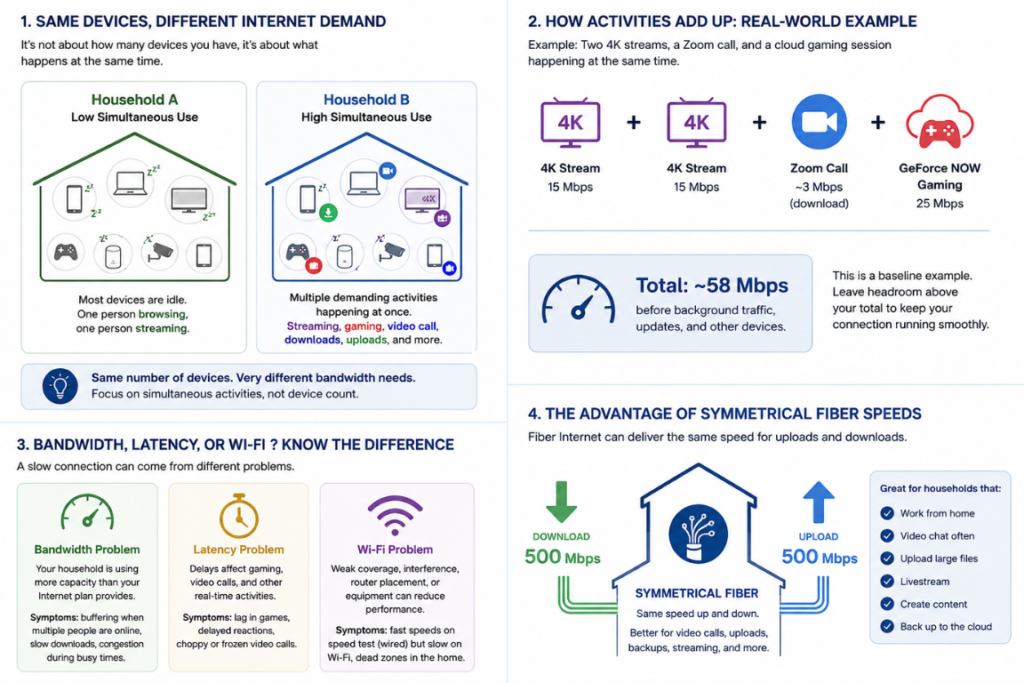
Reliable Internet access for remote learning depends on three things: enough bandwidth for your household’s active users, a stable connection for real-time video and audio, and strong Wi-Fi coverage where learning actually happens.
That distinction matters. Increasing your Internet plan speed may not fix a weak Wi-Fi signal in an upstairs bedroom. On the other hand, moving your router will not solve an Internet connection that does not provide enough capacity when multiple people are online.
Think of your setup in three parts:
- Capacity: Enough download and upload bandwidth for simultaneous classes, file transfers, streaming video, and other household activity.
- Stability: Consistent performance and low enough latency for responsive video calls.
- Coverage: A strong wireless connection in the room where you attend class or complete coursework.
If testing shows that the underlying Internet service is the limiting factor rather than your in-home Wi-Fi, you can compare residential Fiber Internet options that may better match your household’s needs.
The key is to diagnose first, then choose the appropriate solution.
First, Find Out Whether the Problem Is Your Internet Service or Your Wi-Fi
Your Internet service and your Wi-Fi are related, but they are not the same thing.
Your Internet service is the connection delivered to your home. Wi-Fi is the wireless connection your router creates inside the home so laptops, tablets, phones, and other devices can use that service.
That means you can have a high-speed Internet plan and still experience unreliable Internet in one room because the Wi-Fi signal reaching that room is weak.
Start with a simple test.
Run a Baseline Test Near the Router
Test your connection close to the router. If practical, connect a computer directly to the router using Ethernet and test again.
Pay attention to download speed, upload speed, and whether performance remains stable rather than focusing only on the highest number you see. Understanding your speed test results can help you determine what those numbers actually mean.
Google Meet troubleshooting guidance recommends checking bandwidth and latency over time and testing a wired Ethernet connection when diagnosing poor video quality.
Test Where Remote Learning Actually Happens
Next, run the same test from the desk, bedroom, home office, or other area where virtual classes take place.
If performance is strong near the router but drops significantly in the learning area, your Internet plan may not be the problem. Wi-Fi coverage, distance, walls, interference, or router placement may be limiting your wireless connectivity.
Look for Simultaneous-Use Patterns
Also notice when the problem happens.
Does the connection work well until two students join virtual classes? Does your video become blurry while someone else uploads files or streams? Does every device slow down at once?
Those patterns point toward household bandwidth or upload capacity rather than a single weak Wi-Fi location.
How Much Internet Speed Do You Need for Remote Learning?
There is no single Internet speed that every remote learner needs. Your requirements depend on what you do online and how many people use the connection at the same time.
The FCC’s 2026 Section 706 Report uses 100 Mbps download and 20 Mbps upload as its current fixed-broadband benchmark. However, that is a national broadband policy benchmark, not a recommendation that every individual student needs 100/20 Mbps.
The applications you use during online education typically require much less bandwidth individually. Microsoft Teams, for example, recommends about 2.5 Mbps upload and 4 Mbps download per endpoint for video meetings, with 4 Mbps in each direction listed for best performance. Zoom recommends approximately 2.6 Mbps upload and 1.8 Mbps download for a 720p HD group video session.
Those numbers reveal something important: online classes use bandwidth in both directions.
Download Speed, Upload Speed, and Latency Do Different Jobs
Download speed affects how quickly information reaches you. That includes receiving a teacher’s video, loading websites, downloading course materials, and streaming educational content.
Upload speed controls information leaving your home. Your camera, microphone, screen sharing, cloud collaboration, Google Drive activity, and assignment submissions all depend on upload capacity.
Latency refers to the time it takes data to travel across a network. High or inconsistent latency can make a live class feel delayed or unresponsive even when a speed test shows plenty of bandwidth.
Plan for Simultaneous Activity, Not Just Device Count
The number of devices connected to your network matters less than what those devices are doing.
A sleeping smart device uses very little bandwidth. For families with multiple students, two simultaneous live classes while another person works remotely create much more demand.
For example, two simultaneous Zoom sessions using its recommended 720p group-video bandwidth could require roughly 5.2 Mbps of upload capacity before accounting for anything else happening in the home.
| Household situation | Active use | What to watch |
|---|---|---|
| One adult learner | One live class, web research, file uploads | Stability and Wi-Fi coverage |
| Two students | Two simultaneous video classes | Upload and download capacity |
| Students plus remote-working adult | Classes, video meetings, cloud tools, streaming | Concurrency, upload capacity, and headroom |
You do not automatically need Gigabit Internet for remote learning. The better approach is choosing enough capacity for your household’s simultaneous activities with some room to spare.
Why Upload Speed and Fiber Internet Matter for Online Classes
Remote learning is a two-way Internet activity.
You are downloading a teacher’s video, presentations, websites, and course materials while simultaneously uploading your camera feed, microphone audio, screen shares, assignments, and cloud updates.
A simple way to picture this is as a two-way road. Download bandwidth handles traffic coming toward you. Upload bandwidth handles traffic leaving your home.
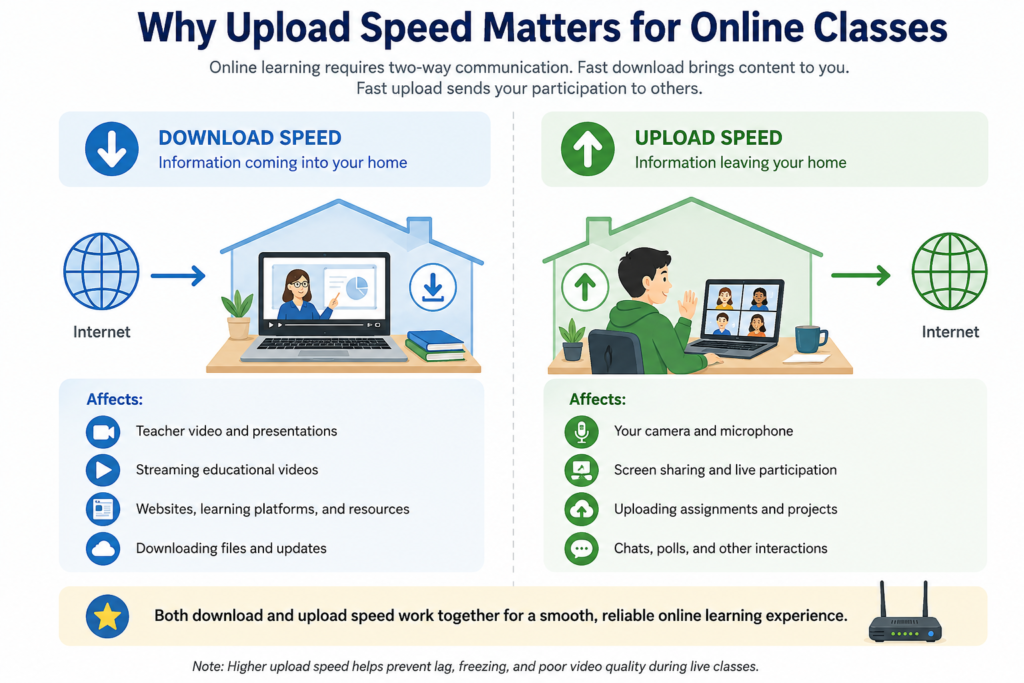
Some Internet plans are asymmetrical, meaning they provide significantly more download capacity than upload capacity. Symmetrical Internet provides similar upload and download speeds.
That difference can become more noticeable when multiple students are in live classes, large assignments are being submitted, or several people are using cloud and video applications at once.
Fiber Internet is commonly well suited to these two-way workloads. In the FCC’s 13th Measuring Broadband America fixed-broadband report, its 2022 measurement panel found substantially higher mean advertised upload speeds for Fiber than for Cable or DSL and noted that Fiber tiers generally provided symmetrical upload and download performance.
That data should not be interpreted as a promise about every current Fiber or Cable plan. Networks and service tiers continue to evolve. However, it illustrates why upload performance is worth checking rather than comparing providers only by advertised download speed.
Fiber is not required for every online learner. But if your household frequently uses video conferencing, cloud applications, large uploads, or multiple simultaneous connections, symmetrical bandwidth can provide useful additional capacity.
How to Improve Wi-Fi for Online Learning at Home
If your Internet service performs well near the router but struggles in the learning area, improving your Wi-Fi may be more effective than upgrading your plan.
Improve Router Placement and Reduce Interference
Place your router in an open, reasonably central location when possible. Avoid hiding it inside a cabinet or placing it in an isolated corner of the home.
Walls, furniture, and other objects can weaken wireless signals. NETGEAR also identifies devices such as microwaves and baby monitors as potential sources of interference in the 2.4 GHz range.
Distance matters too. The farther your learning area is from the router—and the more obstacles the signal must travel through—the greater the chance of reduced performance.
Use the Right Connection for Your Study Location
Modern routers commonly offer both 2.4 GHz and 5 GHz Wi-Fi.
A 5 GHz connection can provide greater capacity and experience less congestion when you are relatively close to the router. However, it generally has shorter range and does not travel through walls as well as 2.4 GHz.
For a fixed study station, Ethernet is another option. A wired connection removes the wireless link from the equation, which makes it useful both for important live classes and for troubleshooting.
Try improvements in this order:
- Move or uncover the router if its location is poor.
- Test the connection in the actual learning area.
- Try 5 GHz when you are close enough to the router.
- Test Ethernet when practical.
- Consider expanded or mesh Wi-Fi coverage if distant rooms continue to have dead zones.
You should not need to buy new equipment simply because one online class experiences a problem. Test first and match the solution to the cause.
Troubleshoot Lag, Freezing, Slow Uploads, and Dropped Video Calls
Different remote-learning problems often point toward different parts of your connection. Use the symptoms as clues rather than immediately assuming your Internet service—or your Wi-Fi—is responsible.
| What you notice | Likely issue to investigate | First test |
|---|---|---|
| Video freezes only in one bedroom | Weak Wi-Fi coverage or interference | Compare performance near the router |
| Every device slows when several video calls begin | Household bandwidth or concurrency | Test during low and high usage |
| Your camera, screen share, or uploads struggle | Upload capacity or background uploads | Check upload speed and active cloud syncing |
| Ethernet works well but Wi-Fi does not | Home Wi-Fi coverage or equipment | Test different rooms and router placement |
| Performance is poor even near the router | Internet service, line quality, or plan capacity | Test wired during low household usage |
If you experience a problem only at certain times, repeat your tests throughout the day. A single speed test provides a snapshot; patterns give you more useful information.
For example, if completing homework works normally all afternoon but video classes become unstable when multiple students go online in the evening, simultaneous demand is an important clue.
Likewise, if everything works close to the router but disconnects in a distant bedroom, buying a faster Internet plan probably will not improve the wireless signal reaching that room.
What Should You Upgrade First: Wi-Fi Equipment or Internet Service?
Use your tests to identify the bottleneck. Problems limited to certain rooms point toward Wi-Fi coverage or equipment, while whole-home slowdowns during simultaneous activity point toward overall Internet capacity or upload speed. If limited upload bandwidth is the issue and your household regularly uses video meetings, cloud applications, or large uploads, comparing symmetrical Fiber options may make sense.
When comparing Internet plans, do not look only at the largest advertised download number. FCC-required Broadband Facts labels can help you compare details such as:
- Typical download speed
- Typical upload speed
- Typical latency
- Pricing
- Data allowances and other plan terms
Remember that a plan label describes the Internet service. It cannot guarantee the Wi-Fi performance you will receive in every room of your home.
The simplest decision path is: identify the problem, fix the home network if coverage is the issue, and compare service options if capacity or upload performance is the issue.
Build a More Reliable Connection for Online Learning
Reliable remote learning starts with understanding where your connection is struggling. Test your Internet near the router, compare performance where learning actually happens, and look at upload capacity and simultaneous activity before changing your plan or equipment.
If Wi-Fi coverage is the problem, improve the home network first. If the underlying service cannot keep up with your household’s two-way Internet demands, a higher-capacity or symmetrical Fiber connection may be the more appropriate next step.
Clearwave offers residential Fiber Internet designed for modern connected households. Explore available options to find out whether Fiber service is available for your home.
Frequently Asked Questions About Wi-Fi and Remote Learning One learner’s live class may use only a few Mbps in each direction, but the right household plan must support every simultaneous class, video call, stream, and upload. Use the FCC’s 100/20 Mbps benchmark as a national reference point—not a per-student requirement—and compare the typical download, upload, and latency figures on Broadband Facts labels. If several people are on video at once, prioritize enough upload capacity and headroom for overlapping activity rather than choosing a plan by download speed alone. Yes. Wi-Fi can support online learning well when the signal is strong and stable in your study area. If you experience repeated freezing or disconnections, test near your router and compare the result with your normal learning location. Ethernet can also provide a stable option for a fixed workstation. Common causes include weak Wi-Fi signal, interference, too many simultaneous high-bandwidth activities, limited upload capacity, unstable latency, or a device-specific issue. Testing in multiple locations and at different levels of household activity can help narrow down the cause. Yes. Upload speed supports everything you send during class, including camera video, microphone audio, screen shares, files, and cloud activity. Limited upload capacity can create problems even when your advertised download speed appears fast. Yes, provided your home has enough Internet capacity and strong Wi-Fi coverage for each learning area. Multiple simultaneous video classes increase both upload and download demand, so households with several learners should evaluate concurrent activity rather than simply counting connected devices. Fiber can be especially helpful in households that need strong upload performance, symmetrical speeds, and enough bandwidth for several simultaneous users. It is not necessary for every learner, but its two-way capacity can be a good match for live classes, cloud collaboration, uploads, and other modern online-learning activities.