
Your Wi-Fi works perfectly in the living room, but the signal drops upstairs. A back bedroom struggles during video calls. The basement barely connects at all. If this sounds familiar, you may be dealing with Wi-Fi dead spots.
A Wi-Fi dead spot, or dead zone, is an area of your home where the wireless signal becomes weak, unreliable, or unavailable. This can happen even when your Internet connection itself is working properly.
In larger homes, distance, walls, floors, router placement, interference, and the limits of a single router can all affect Wi-Fi coverage. The key is figuring out what is causing the problem before deciding how to fix it.
Wi-Fi Dead Spots: Key Takeaways
- Wi-Fi dead spots often result from distance, walls, interference, or poor router placement.
- Fiber Internet can be fast and reliable while individual rooms still have weak Wi-Fi coverage.
- Compare performance near your router and in problem areas to confirm a true Wi-Fi dead spot.
- Moving your router to a central, open location is one of the easiest fixes to try first.
- Wi-Fi extenders work best for one weak area, while mesh systems better support multiple rooms or floors.
- Contact your Internet provider when connectivity problems affect the entire home or persist close to the router.
Why Wi-Fi Dead Spots Happen in Large Homes
Wi-Fi dead spots usually occur because the wireless signal loses strength before reaching certain parts of your home. Distance, walls and floors, router placement, physical obstructions, and interference can all contribute.
Importantly, a dead zone does not automatically mean your Internet service is slow. A strong residential Fiber Internet connection can deliver high-capacity service to your home while your in-home Wi-Fi network determines how effectively that connection reaches each room.
Diagnosing the cause first can help you determine whether a simple router adjustment or a broader Wi-Fi coverage solution makes the most sense.
Common Causes of Wi-Fi Dead Spots in Larger Homes
The larger and more complex your home’s layout becomes, the harder it can be for one Wi-Fi router to provide consistent coverage everywhere. Wi-Fi uses radio waves, and those signals become weaker as they travel farther and pass through obstacles.
Distance, Home Size, and Multiple Floors
A wireless signal is generally strongest close to the main router. As you move farther away, signal strength declines.
That becomes particularly noticeable in bigger homes. A long ranch-style house, finished basement, second or third floor, garage, distant home office, or bedroom on the opposite side of the house can all sit farther outside a single router’s strongest coverage area.
A 2026 peer-reviewed study of indoor Wi-Fi performance found that distance, walls, floor separation, and loss of a clear line of sight all affected wireless performance. While the study took place in a multi-story building rather than a typical home, it demonstrates why physical layout matters.
If your connection works well near the router but gets progressively weaker as you move away, distance is a strong clue that you have a Wi-Fi coverage problem.
Walls, Floors, Metal, and Furniture Can Block Wi-Fi Signals
Wi-Fi signals do not travel through every material equally.
Common obstacles that can weaken Wi-Fi signals include:
- Concrete or thick walls
- Multiple floors
- Metal filing cabinets or other metal objects
- Large furniture
- Other dense materials between your router and device
This does not mean one wall will automatically create a dead zone. The effect depends on the home’s construction, the distance from the router, the Wi-Fi frequency being used, and what else stands between the router and your device.
The more barriers your Wi-Fi signal has to cross, however, the more difficult it becomes to maintain reliable connectivity.
Router Placement Can Create Dead Zones
Where you put your Wi-Fi router can make a major difference.
Wi-Fi coverage may suffer when your router is:
- Hidden inside a cabinet
- Tucked into a basement or corner
- Positioned close to the floor
- Placed at one end of a large home
- Surrounded by furniture or other obstructions
The FCC’s home network guidance recommends placing a router in a central location to improve coverage.
That does not guarantee a single router will cover every large home. However, correcting poor placement is one of the easiest things to try before adding more equipment.
Interference Can Make Wi-Fi Unstable
Sometimes a room is not a true dead spot. You may still see a Wi-Fi signal, but experience slow Wi-Fi, disconnects, or trouble connecting.
Nearby Wi-Fi networks can compete for wireless airtime. Certain electronic devices operating in similar frequency ranges can also contribute to interference. Examples can include cordless phones, baby monitors, microwaves, and other electronic devices.
In crowded wireless environments, the problem may involve interference or channel congestion rather than a complete lack of coverage.
Wi-Fi Bands Balance Range and Performance
Your router may use multiple frequency bands, commonly including 2.4 GHz and 5 GHz, with newer equipment also supporting 6 GHz.
In simple terms, 2.4 GHz generally provides longer range and can travel through obstacles more effectively. Higher-frequency bands can provide greater capacity under favorable conditions but usually have a shorter effective range.
That helps explain why your phone may perform extremely well near the router but switch to a weaker connection farther away.
Band selection can help with some coverage issues, but it should be treated as one troubleshooting tool rather than a universal fix.
| What You Notice | Likely Cause | First Thing to Check |
|---|---|---|
| One distant room has weak Wi-Fi | Distance or obstruction | Router placement and barriers |
| Wi-Fi weakens through several floors | Physical attenuation | Router/node placement |
| Signal exists but speeds are inconsistent | Interference or congestion | Nearby networks and electronics |
| Wi-Fi is strong near the router but weak far away | Coverage limitation | Extender or mesh options |
| Every room becomes slow at once | Broader connection or equipment issue | Router and Internet connection |
Why Can Fiber Internet Still Have Wi-Fi Dead Spots?
Fiber Internet and Wi-Fi perform two different jobs.
Think of your home connection as having two layers. Fiber brings Internet capacity into your home. Wi-Fi distributes that connection wirelessly to your devices.
That distinction matters because strong broadband performance at the router cannot overcome a poorly positioned router, thick concrete wall, excessive distance, or inadequate Wi-Fi coverage in another part of the house.
Fiber can provide the high bandwidth needed for modern households, including fast uploads and downloads. Symmetrical bandwidth can be especially valuable when your household is handling video calls, cloud backups, content uploads, streaming, and many connected devices at the same time.
But additional Internet speed does not make radio waves travel farther through your house.
If one room consistently has trouble while Wi-Fi works well near the router, simply upgrading to a faster Internet plan may not eliminate the dead zone. You need to address the in-home Wi-Fi network itself.
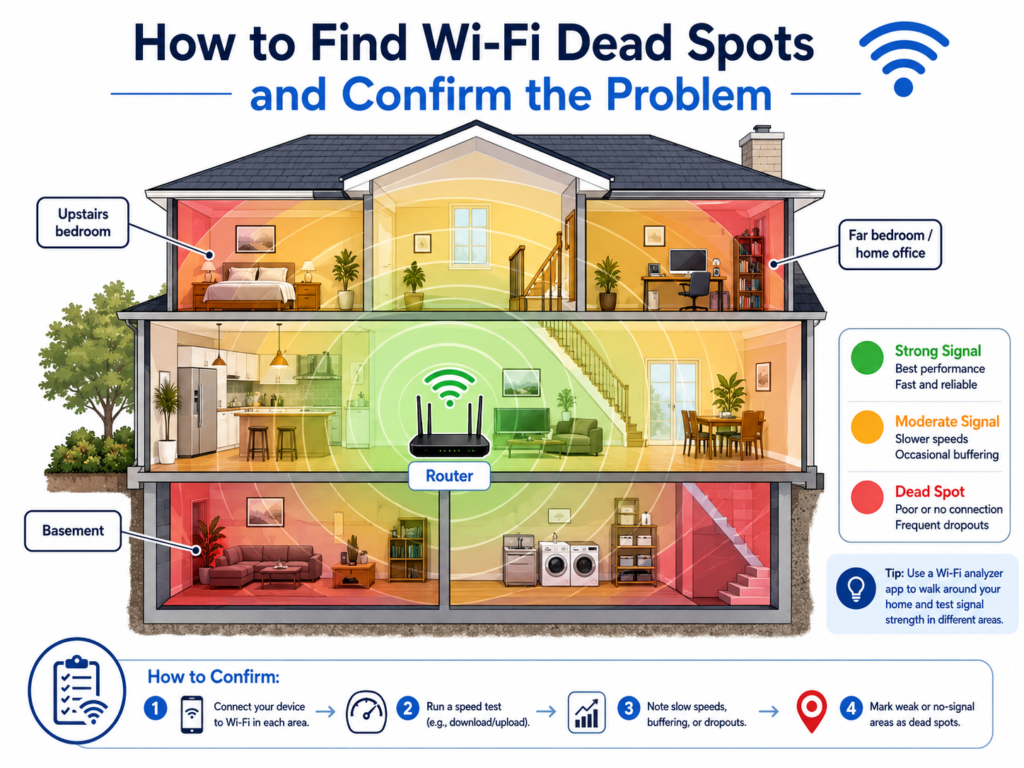
How to Find Wi-Fi Dead Spots and Confirm the Problem
Before buying new equipment, make sure you are actually dealing with a coverage problem.
- Walk through your home and identify the pattern. Note whether trouble occurs repeatedly in the same room, corner, floor, basement, or distant area.
- Test near the main router. Use the same device near your router, then test again in the suspected dead spot. Strong performance near the router and consistently weak performance in one location points toward a coverage issue.
- Try another device. If only one phone or computer has trouble connecting, the problem may be specific to that device.
- Look for physical obstacles. Consider what sits between the router and the weak area, including concrete walls, floors, filing cabinets, metal, large furniture, and long distances.
- Pay attention to whole-home problems. If every room slows down or disconnects simultaneously, the issue may involve the router, equipment, or Internet connection rather than a Wi-Fi dead zone.
You can also use a Wi-Fi analyzer or heat-map tool to visualize signal strength throughout the house. Clearwave customers with supported equipment can use the Clearwave Wi-Fi App to run speed tests and review connected devices while troubleshooting. For most homeowners, however, a simple room-by-room comparison is enough to identify an obvious coverage pattern.
How to Fix Wi-Fi Dead Spots: Start With the Simplest Solution
The best fix depends on why the dead spot exists. Instead of immediately buying more hardware, start with the simplest changes and work your way up.
Move the Router to a Central, Open Location
Start with router placement.
When practical, move the Wi-Fi router away from cabinets, large furniture, metal objects, corners, and floor-level locations. A more central location can provide a clearer path between the router and more areas of your home.
After moving it, retest the problem location. Change one thing at a time so you can tell whether the adjustment actually improved coverage.
Reduce Interference and Keep Equipment Updated
If signal strength seems reasonable but Wi-Fi remains unstable, look for potential interference.
Moving the router away from electronic devices can help in some environments. You should also make sure your router has the latest firmware or that automatic updates are enabled when supported.
Wireless channel congestion can also contribute to poor performance. Intel’s Wi-Fi channel guidance notes that crowded channels may cause slow connections or disconnects.
Many newer routers automatically manage wireless channels, though, so manual channel adjustments should not be your first troubleshooting step.
Use the Wi-Fi Band That Fits the Location
If your router supports multiple bands, your device may have access to both longer-range and higher-capacity connections.
A 2.4 GHz connection may provide better reach through walls or across longer distances. Higher-frequency options may perform better when you are closer to the router.
If your router offers automatic band steering, letting the system manage bands may be easier than manually switching between networks.
Use a Wi-Fi Extender for One Localized Weak Area
A Wi-Fi extender can help when you have one specific area that sits just beyond your router’s reliable range.
Placement matters. The extender needs to receive a usable signal from the main router before it can extend that connection farther. Putting it deep inside the dead zone gives it a weak signal to work with.
You may also see terms such as repeater or signal booster. Consumer naming varies, but the basic goal is similar: extend wireless coverage into an area the main router does not reach effectively.
For one isolated weak room, that may be enough.
Consider Mesh or Whole-Home Wi-Fi for Several Dead Zones
If multiple rooms, floors, or distant sections of a larger home struggle with Wi-Fi, a mesh network may be a better fit.
Instead of asking one router to cover the entire house, a mesh system uses multiple strategically positioned nodes to distribute Wi-Fi across a larger area.
Those nodes still need a strong enough connection to communicate with the main router or another node. ASUS mesh placement guidance emphasizes the importance of minimizing obstructions and placing nodes where they can maintain a usable signal.
In other words, do not place a mesh node at the absolute worst point in the dead zone. Position it between the strong-coverage area and the location you are trying to reach.
Where Ethernet wiring is practical, wired backhaul or a wired access point can provide an especially strong connection between parts of the home. Powerline adapters are another option in some situations, although their performance can vary depending on a home’s electrical system.
| Option | Best For | Main Limitation | When to Choose It |
|---|---|---|---|
| Router repositioning | Minor or placement-related dead spots | May not cover a very large home | Try first |
| Wi-Fi extender | One localized weak area | Depends on receiving a good source signal | One room or nearby area needs coverage |
| Mesh/whole-home Wi-Fi | Multiple rooms or floors | Requires thoughtful node placement | Large or multi-story homes |
| Wired backhaul/access point | Difficult-to-reach or high-demand areas | Requires Ethernet access | When maximum consistency is important |
When Should You Contact Your Internet Provider?
Not every connectivity problem should be solved by adding another piece of hardware.
Consider contacting your Internet provider when:
- Slow speeds or disconnections affect your entire home
- Problems continue even when you’re close to the router
- Your router or other equipment appears to be malfunctioning
- You cannot isolate the issue to a particular room or location
- Multiple rooms need coverage and basic troubleshooting has not solved the problem
Clearwave customers can use available network-management tools, including the Clearwave Wi-Fi App with supported equipment, and can explore C-Fi whole-home coverage extenders when a larger coverage solution makes sense.
Build a Strong Connection Throughout Your Home
Wi-Fi dead spots in larger homes are usually a coverage problem rather than proof that your Internet connection is too slow.
Start by identifying where the problem occurs. Then check router placement, obstacles, interference, and your Wi-Fi bands before adding equipment. A single weak room may need only a placement adjustment or extender, while several weak areas may point toward mesh or whole-home Wi-Fi.
Fiber provides the high-capacity broadband foundation. A well-planned Wi-Fi network helps your devices throughout the house take advantage of it.
If you’re ready to improve your home’s overall connectivity, explore Clearwave residential options and find out whether Fiber is available in your area.
Frequently Asked Questions About Wi-Fi Dead Spots Distance and physical obstacles can weaken Wi-Fi signals. Concrete or thick walls, multiple floors, metal objects, cabinets, large furniture, and certain electronic devices can all contribute. The effect depends on your home layout, router location, frequency band, and equipment. Walk through your home with the same connected device and compare performance in different rooms. Test close to the router first, then in areas where you normally have trouble connecting. If multiple devices repeatedly lose signal in the same location while working well near the router, you have likely identified a Wi-Fi dead spot. A Wi-Fi extender is generally better suited to one localized weak area. A mesh or whole-home Wi-Fi system is usually more appropriate when a large or multi-story house has several weak rooms. The right choice still depends on construction, router placement, and the shape of the coverage problem. Yes, when weak wireless coverage is actually the problem. An extender or booster can help carry Wi-Fi into an area the main router cannot reliably reach, but it needs to be placed where it still receives a solid signal. It will not fix an Internet outage or a whole-home broadband problem. No. Fiber Internet can provide a fast, high-capacity connection to your home, but your in-home Wi-Fi network still determines how that connection reaches individual devices. Router placement, distance, walls, interference, and the number and location of access points can all affect Wi-Fi coverage.